
Location filters can be used to show data only for one or more selected locations on the reports.
Only location history report restricts user to select no more than 1 location at a time; all other reports allow multiple selection.
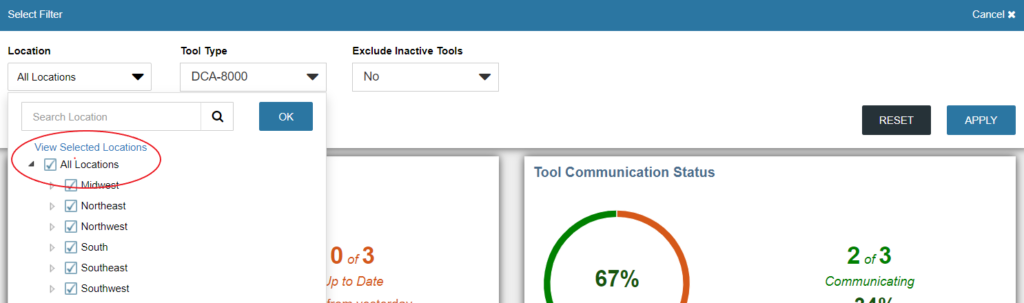
Selecting all locations
Ensure that the check box next to “All Locations” is selected with a blue tick and then hit the apply button to view data for all the locations.
Selecting one/ multiple locations
To select one or more locations first deselect all locations and ensure that the checkbox next to all locations is white and not orange.

Then click on the the desired locations/ regions to select them. The check box next to all locations will be shaded in light orange indicating one or a few locations are already selected.
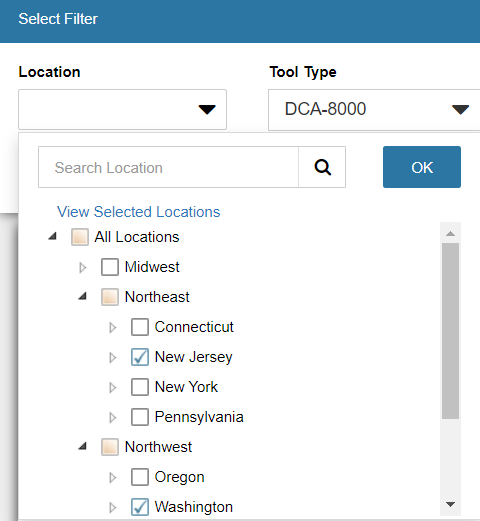
You can now hit apply to filter the report for selected locations or click on the “View Selected Locations,” button to confirm the selected locations